
Controlling XY Pads in Krotos Studio with a Trackpad
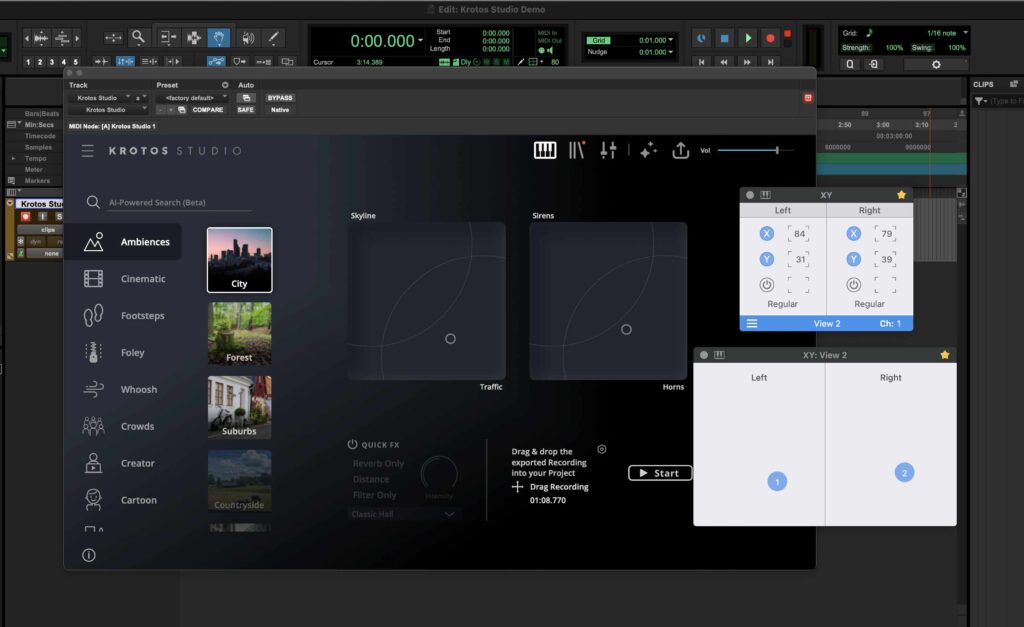
UPDATED – AUGUST 10, 2025. For this tutorial, I’m using Krotos Studio version 2.1.2 and AudioSwift 2.3.8 Beta for macOS. Please download the latest AudioSwift Beta before continuing. Krotos Studio is a sound FX plugin that comes with two XY pads to control the sound design. We can use a trackpad with AudioSwift for macOS to move both XY pads in real time. In this tutorial, we’re going to explain two methods to map Krotos Studio parameters to the trackpad. If you’re new to AudioSwift, please check out this tutorial for installation and overview. Method 1 – Krotos Studio MIDI CC Assignments The latest Krotos Studio version 2.1.2 added MIDI CC assignments capabilities for controls and XY pads inside the software. We can map the X and Y axes to AudioSwift CC’s using Krotos Studio MIDI Learn feature. For this first method we’re going to use Pro Tools as an example but it should work with any DAW. Watch Demo 1 with Pro Tools MIDI Mapping Process with AudioSwift Since we are going to use AudioSwift in XY Mode, make sure the AudioSwift port 3 is enabled in the DAW. For Pro Tools, check Pro Tools > Setup > MIDI > MIDI Input Devices. Then, create an Instrument track and insert the Krotos Studio plugin. Make sure to click the arm record button on the track in order to receive MIDI messages from the trackpad. In the AudioSwift Console window, select XY Mode and View 2 to divide the trackpad into 2 XY pads. Choose the CC numbers you want to use for each axis. Enable the X and Y buttons for the left and right XY Pads. Set both formats to Regular. We’re only going to use the XY axes and not the switch buttons, so disable them. It should look like this: We need to map each parameter one at a time. In Krotos Studio, right click the left XY pad dot and click MIDI Learn X Axis CC#. In this example, we are in the preset Ambiences – City in Krotos Studio. Krotos Studio is now waiting to receive a MIDI message from the trackpad from the X axis of the left XY pad. Follow these steps to send MIDI from the trackpad: Turn on AudioSwift with a five/four finger tap gesture on the trackpad. Keep pressing the CONTROL key to lock the horizontal movements (X axis). With only one finger touching the trackpad, move your finger horizontally over the left XY pad. Turn off AudioSwift by pressing the Escape key. The X axis in Krotos Studio should now be mapped to the CC number for the left X axis of the trackpad. In this example is CC10. To map the Y axis, let’s repeat the steps from above but with the left Y axis. First go to Krotos Studio again, right click the left XY pad dot but now this time select MIDI Learn Y Axis CC#. Then repeat the steps but vertically: Turn on AudioSwift with a five/four finger tap gesture on the trackpad. Keep pressing the SHIFT key to lock the vertical movements (Y axis). With only one finger touching the trackpad, move your finger vertically over the left XY pad. Turn off AudioSwift by pressing the Escape key. The Y axis in Krotos Studio should now be mapped to the CC number for the left Y axis of the trackpad. In this example is CC11. Now both X and Y left axes should be enabled to the correspondent CC numbers. Just right click the left XY dot again in Krotos Sto double check the mapping. Repeat the process above for the right XY pad. Test the Trackpad Now Krotos Studio is ready to be tested with the trackpad. With the track selected and with the arm record button enabled. Click the start button in Krotos Studio to start recording. Turn on AudioSwift with a five/four finger tap gesture and start moving the left XY pad on the trackpad and then the right XY pad. Tips for Method 1 The MIDI mappings can be saved if you save the preset as a user preset inside Krotos Studio. Next time you load the user preset, its MIDI mappings will be there. The MIDI mappings will work only for that particular sound you chose. If you change to another factory preset from either the same category of sounds or other, all the mappings that were in the previous preset will be deleted. The buttons for start recording the sounds can’t be MIDI mapped from inside Krotos Studio. They don’t appear available for MIDI Learn. To start a sound you’ll need to press a MIDI note if you have a MIDI keyboard available and keep pressing the key (or use a sustain pedal). Release the key, and the recording will stop. If you don’t have a MIDI keyboard available, you can use the MIDI Keys available in the latest AudioSwift Beta Version. When AudioSwift is active, there’s a MIDI keys feature using the computer keyboard (just like the ones that come built in DAWs). To activate it, click the MIDI Keys icon in the top left corner of the AudioSwift Console Window or press CMD + K. To sustain the note so you can use both hands on the trackpad, play the note and then press SHIFT + Tab. This will lock the sustain. To stop the note press the Tab key again to release the sustain. Method 2 – DAW MIDI Learn Function For this method we’re going to use the MIDI Learn feature built in the DAW to do all the mapping. This method works with any DAW that has MIDI assignments features. For this example, we’re going to use Ableton Live. Watch Demo 2 with Ableton Live Selecting Krotos Studio Parameters in Ableton Live Insert a VST or AU version of Krotos Studio in a track and select one of the presets in a category. In this example, we chose the preset Ambiences